
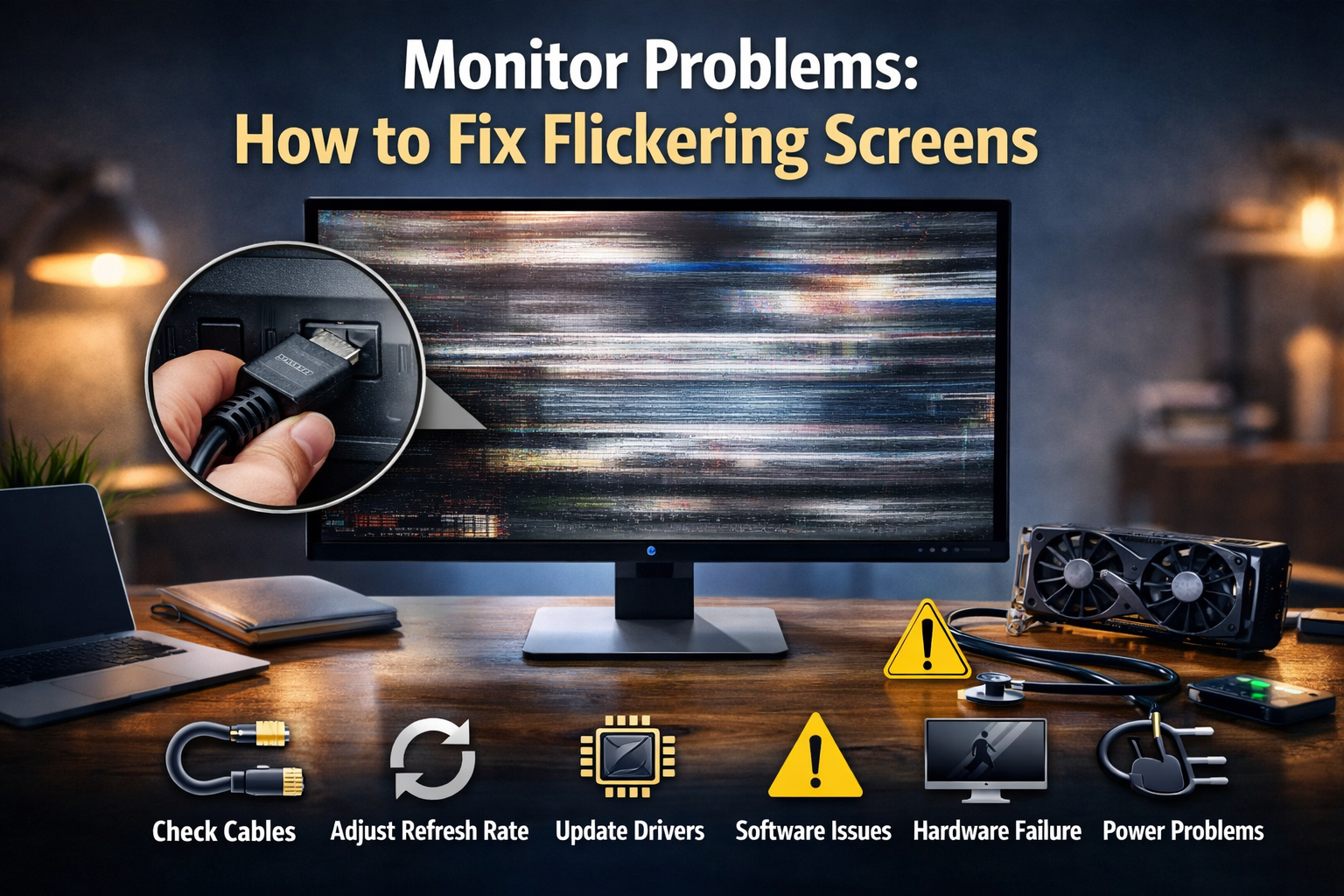
A flickering monitor can be more than just annoying—it can strain your eyes, disrupt your work, and sometimes signal a deeper hardware or software problem. If your screen keeps blinking, flashing, or dimming unexpectedly, don’t panic. In many cases, the issue is easy to diagnose and fix. Here’s a practical, easy-to-follow guide from Mac Center to help you understand why screen flickering happens and what you can do about it.
Common Causes of Screen Flickering
Before jumping into fixes, it helps to know what might be causing the problem. Screen flickering usually falls into one of these categories:
1. Loose or Damaged Cables
One of the most common reasons for a flickering screen is a loose or faulty display cable. HDMI, DisplayPort, VGA, or USB-C cables that are not properly connected can interrupt the signal, causing the screen to flicker.
What to do:
-
Turn off your computer and monitor.
-
Unplug and firmly reconnect the display cable.
-
Try a different cable if possible to rule out damage.
2. Incorrect Refresh Rate Settings
Every monitor has a recommended refresh rate. If your computer is set to a rate your monitor doesn’t support, flickering can occur.
What to do:
-
On macOS: Go to System Settings → Displays.
-
Select the correct monitor and choose a recommended refresh rate (usually 60Hz or higher).
-
Avoid experimental or unsupported refresh rates.
3. Outdated or Corrupt Graphics Drivers
Graphics drivers control how your system communicates with your monitor. If they’re outdated or corrupted, screen flickering may occur.
What to do:
-
Update your operating system to the latest version.
-
For Windows systems, update your graphics driver via Device Manager or the manufacturer’s website.
-
Restart your computer after updates.
4. App or Software Conflicts
Sometimes, the issue isn’t the monitor—it’s a specific application. Certain apps may not play well with your display settings, especially older or poorly optimized software.
What to do:
-
Close running apps one by one to see if the flickering stops.
-
Update or reinstall the problematic application.
-
Check for known compatibility issues.
5. Failing Monitor Hardware
If you’ve tried everything and the flickering persists, the monitor itself may be failing. Aging backlights, damaged panels, or internal power issues can cause persistent flickering.
What to do:
-
Test the monitor with another computer.
-
If the flicker remains, the monitor likely needs repair or replacement.
6. Power Supply Issues
Inconsistent power delivery can also cause flickering, especially with older monitors or faulty power adapters.
What to do:
-
Plug the monitor directly into a wall outlet.
-
Avoid using damaged power cables or overloaded power strips.
-
Try a different power cable if available.
When to Seek Professional Help
If your screen flickers intermittently or continuously despite trying these fixes, it’s best to let a professional take a closer look. Persistent flickering can lead to eye strain and may indicate deeper hardware issues.
At Mac Center, we diagnose and fix monitor and display-related problems for Macs and other devices. Whether it’s a simple cable issue or a more complex hardware repair, our technicians are here to help get your screen back to smooth, stable performance.
Final Tip
Don’t ignore a flickering screen. What starts as a minor annoyance can turn into a bigger problem if left unchecked. With the right troubleshooting—and expert help when needed—you can enjoy a clear, steady display again.